containerization-and-devops
Lab 3 – Docker Images and Custom NGINX (Part 1)
Objective
- To pull and run official NGINX image
- To verify containerized web server in browser
- To build a custom NGINX image using Ubuntu
- To build a lightweight NGINX image using Alpine
- To compare image sizes
- To deploy custom HTML using bind mount
Environment Used
- Host OS: Windows 11
- Docker Desktop
- PowerShell Terminal
- Web Browser (Chrome)
Part A – Running Official NGINX Image
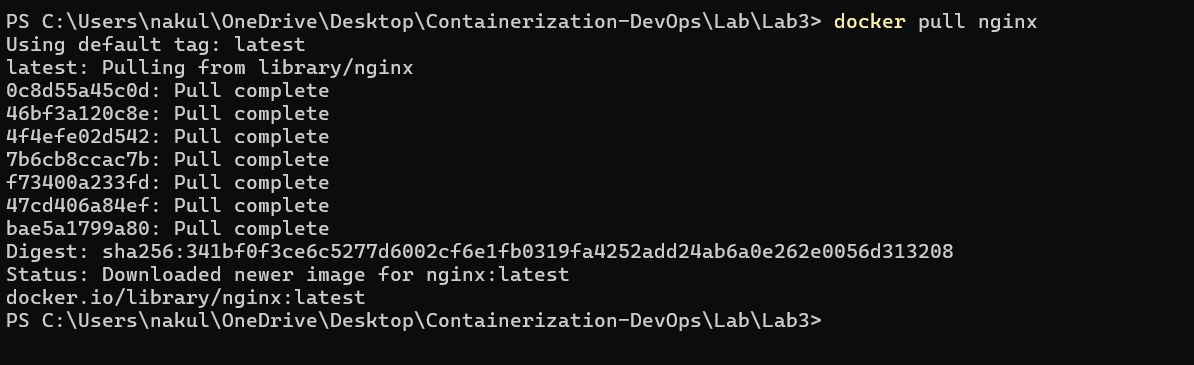
Step 1 – Pull NGINX Image
docker pull nginx
Step 2 – Run NGINX Container
docker run -d --name nginx-official -p 8080:80 nginx

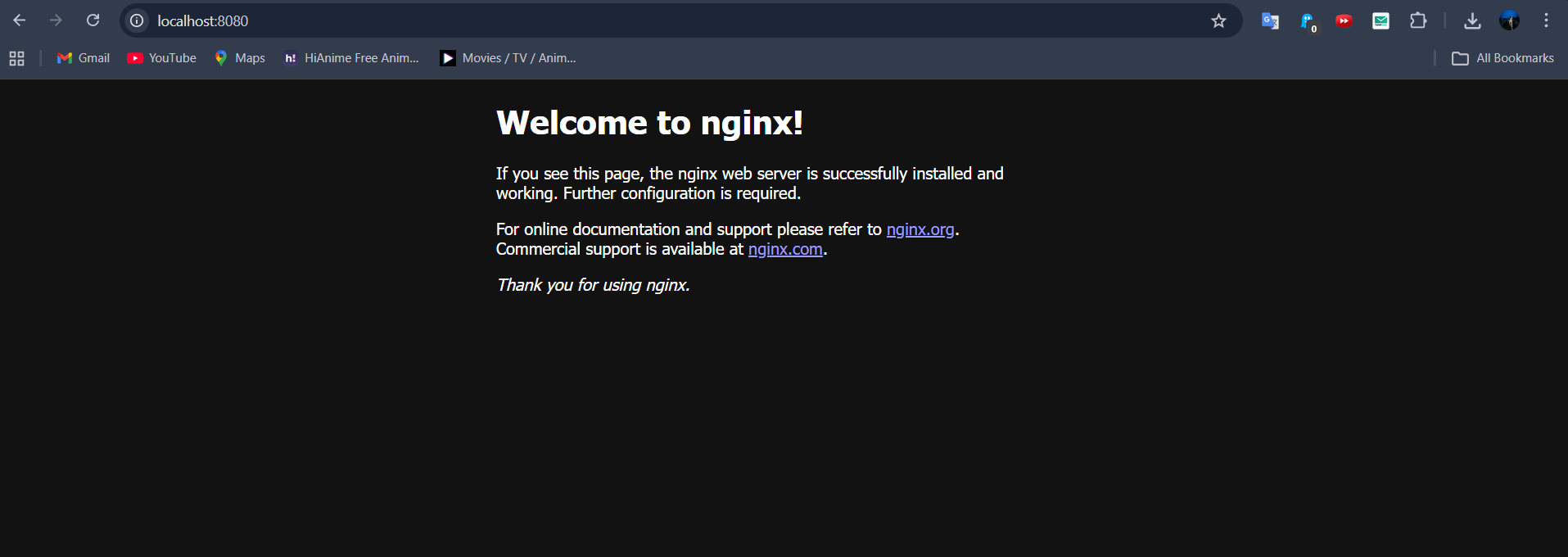
Step 3 – Verify in Browser
Open:
http://localhost:8080
Step 4 – Check Image Details
docker images nginx

Part B – Custom NGINX using Ubuntu Base
(Folder: Part1)
Step 5 – Dockerfile (Ubuntu Based)
FROM ubuntu:22.04

RUN apt-get update && \
    apt-get install -y nginx && \
    apt-get clean && \
    rm -rf /var/lib/apt/lists/*

EXPOSE 80

CMD ["nginx", "-g", "daemon off;"]


---
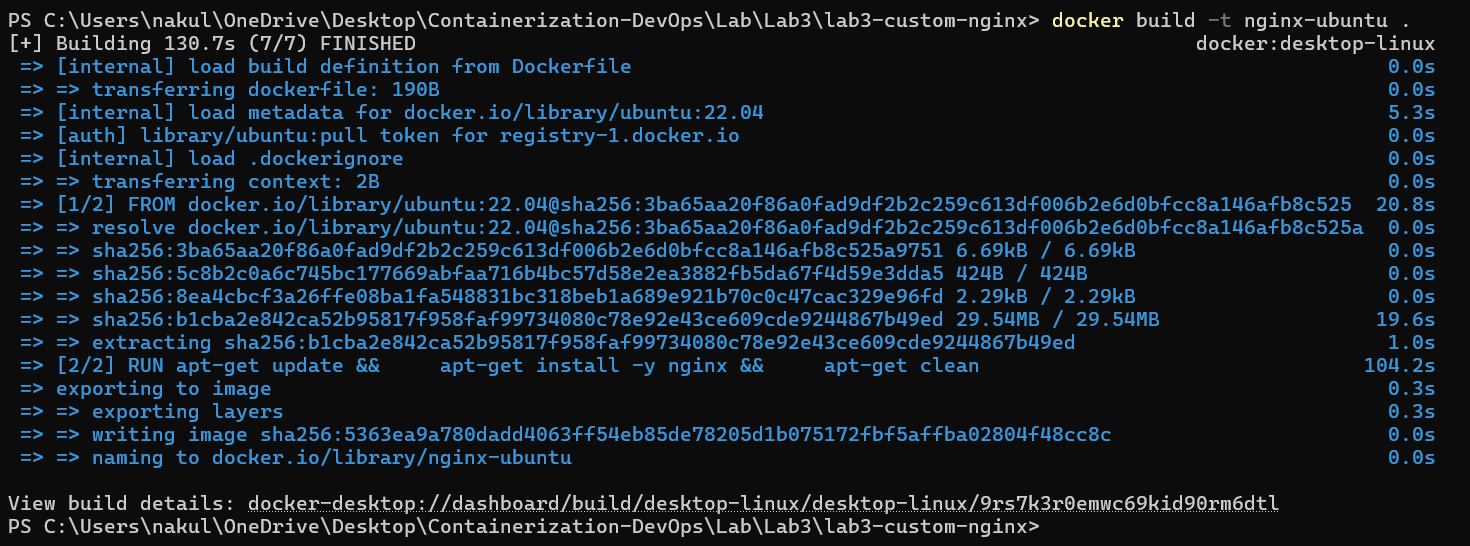
Step 6 – Build Ubuntu-based Image
docker build -t nginx-ubuntu .
Step 7 – Verify Image Size
docker images nginx-ubuntu

Part C – Lightweight NGINX using Alpine
(Folder: Part2)
Step 8 – Dockerfile (Alpine Based)
FROM alpine:latest

RUN apk add --no-cache nginx

EXPOSE 80

CMD ["nginx", "-g", "daemon off;"]

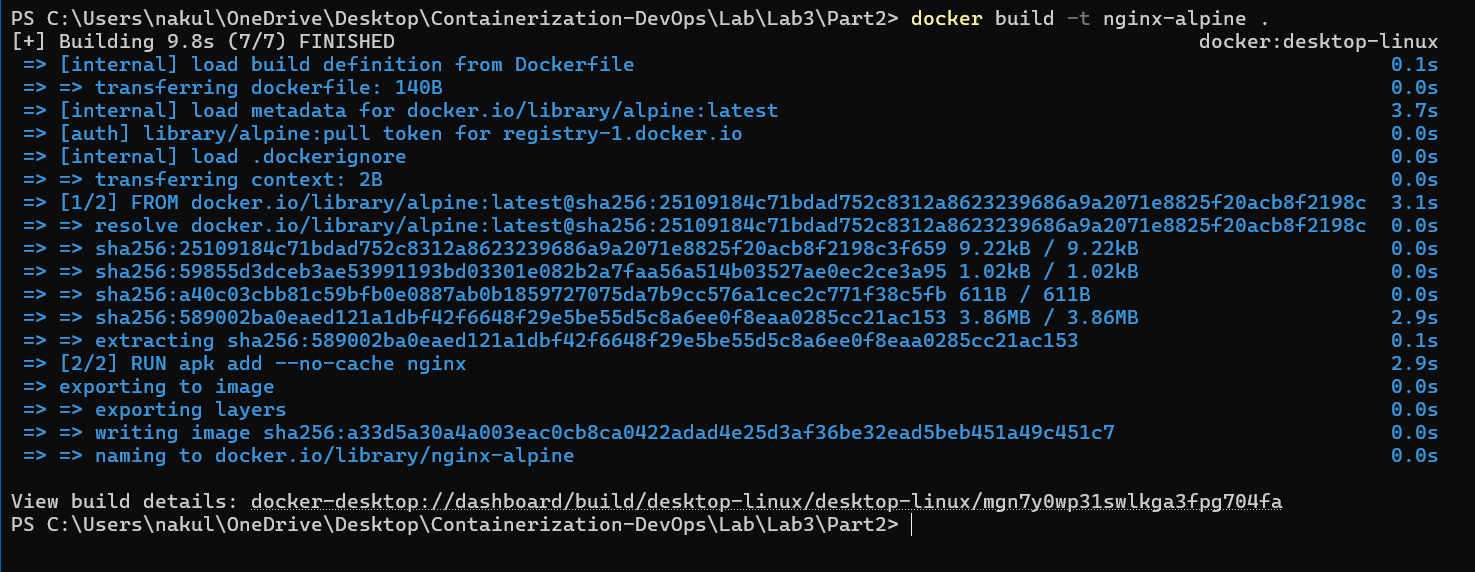
Step 9 – Build Alpine Image
docker build -t nginx-alpine .
Step 10 – Run Alpine Container
docker run -d --name nginx-alpine -p 8082:80 nginx-alpine

Step 11 – Compare Image Sizes
docker images | findstr nginx

Part D – Custom HTML Deployment using Bind Mount
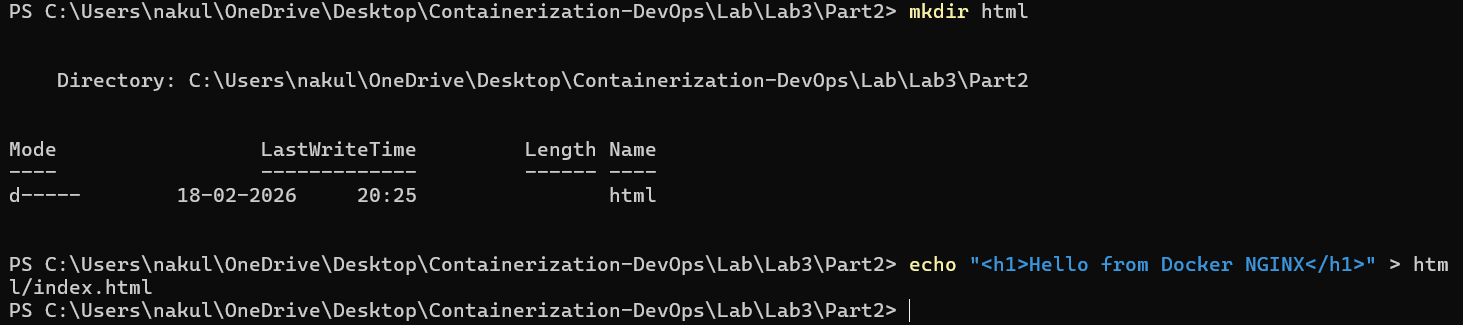
Step 12 – Create HTML Directory
mkdir html

Step 13 – Create Custom Index File
echo "<h1>Hello from Docker NGINX</h1>" > html/index.html
Step 14 – Run Container with Bind Mount
docker run -d ^
  -p 8083:80 ^
  -v ${PWD}\html:/usr/share/nginx/html ^
  nginx

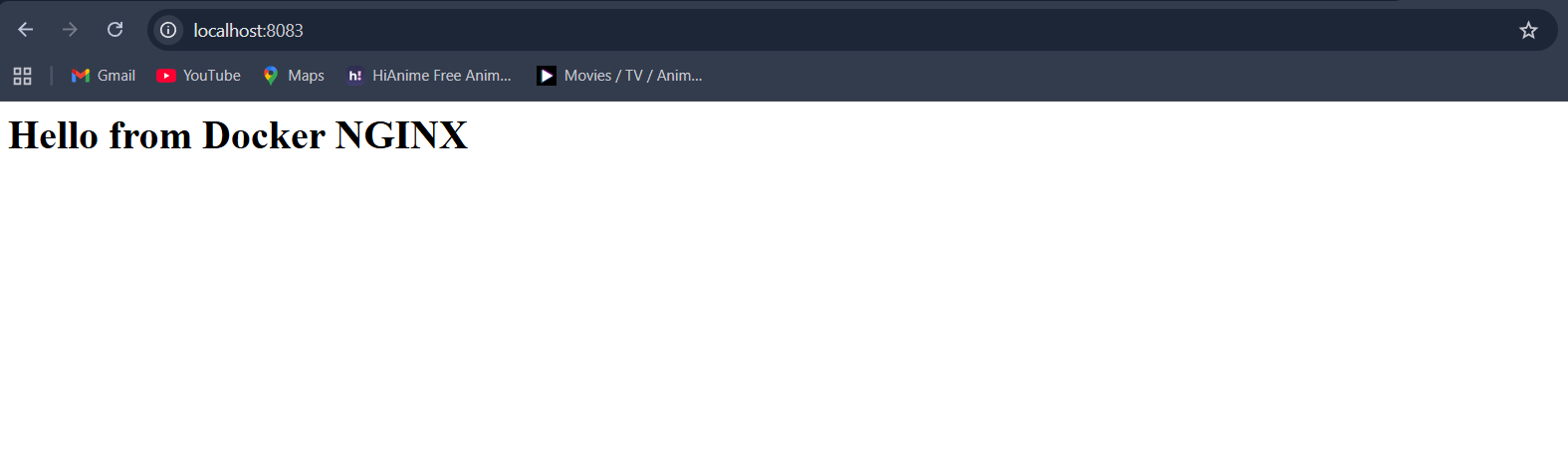
Step 15 – Verify Custom Page in Browser
Open:
http://localhost:8083
Result (Partial – Continuing Later)
- Official NGINX container deployed
- Ubuntu-based custom image built
- Alpine-based lightweight image built
- Image size comparison completed
- Custom HTML deployed using bind mount