containerization-and-devops
Lab 5: Docker Volumes, Environment Variables, Monitoring & Networks
Objective
Learn advanced Docker concepts including persistent data storage with volumes, application configuration with environment variables, container monitoring, and linking multiple containers using Docker networks.
Part 1: Docker Volumes – Persistent Data Storage
By default, data inside a container is ephemeral (lost when the container is removed). Volumes provide a way to safely persist data.
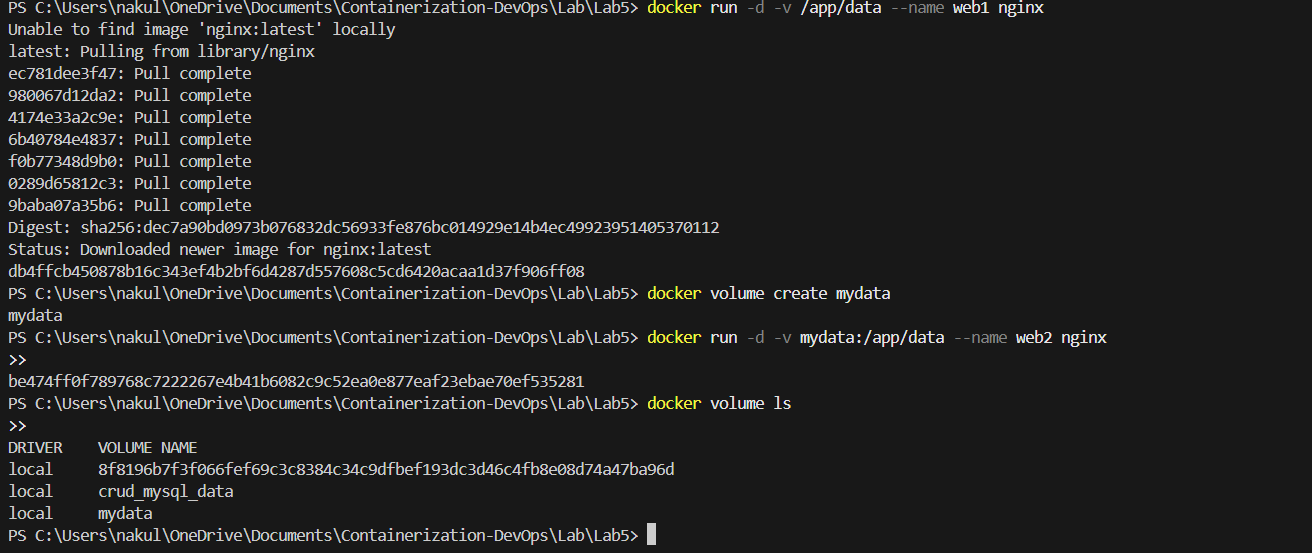
1. Anonymous & Named Volumes
docker run -d -v /app/data --name web1 nginx
docker volume create mydata
docker run -d -v mydata:/app/data --name web2 nginx
docker volume ls
2. Bind Mounts (Host Directory)
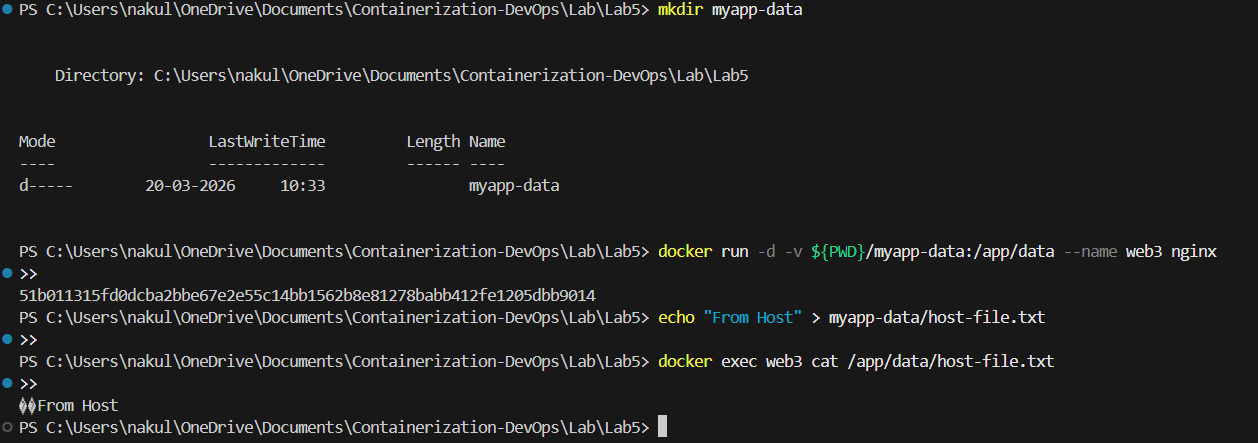
Bind mounts attach a specific directory on your host machine to a directory inside the container.
mkdir myapp-data
docker run -d -v ${PWD}/myapp-data:/app/data --name web3 nginx
echo "From Host" > myapp-data/host-file.txt
docker exec web3 cat /app/data/host-file.txt
Part 2: Environment Variables
Environment variables allow us to pass configuration parameters into the container at runtime.
1. Building and Running a Flask App with ENV Vars
We built a custom Flask application that returns configuration data via a /config API endpoint.
app.py
import os
from flask import Flask
app = Flask(__name__)

db_host = os.environ.get('DATABASE_HOST', 'localhost')
debug_mode = os.environ.get('DEBUG', 'false').lower() == 'true'
api_key = os.environ.get('API_KEY')

@app.route('/config')
def config():
    return {
        'db_host': db_host,
        'debug': debug_mode,
        'has_api_key': bool(api_key)
    }

if __name__ == '__main__':
    port = int(os.environ.get('PORT', 5000))
    app.run(host='0.0.0.0', port=port, debug=debug_mode)
Dockerfile
FROM python:3.9-slim

ENV PYTHONUNBUFFERED=1
ENV PYTHONDONTWRITEBYTECODE=1

WORKDIR /app
COPY requirements.txt .
RUN pip install -r requirements.txt

COPY app.py .

ENV PORT=5000
ENV DEBUG=false

EXPOSE 5000
CMD ["python", "app.py"]
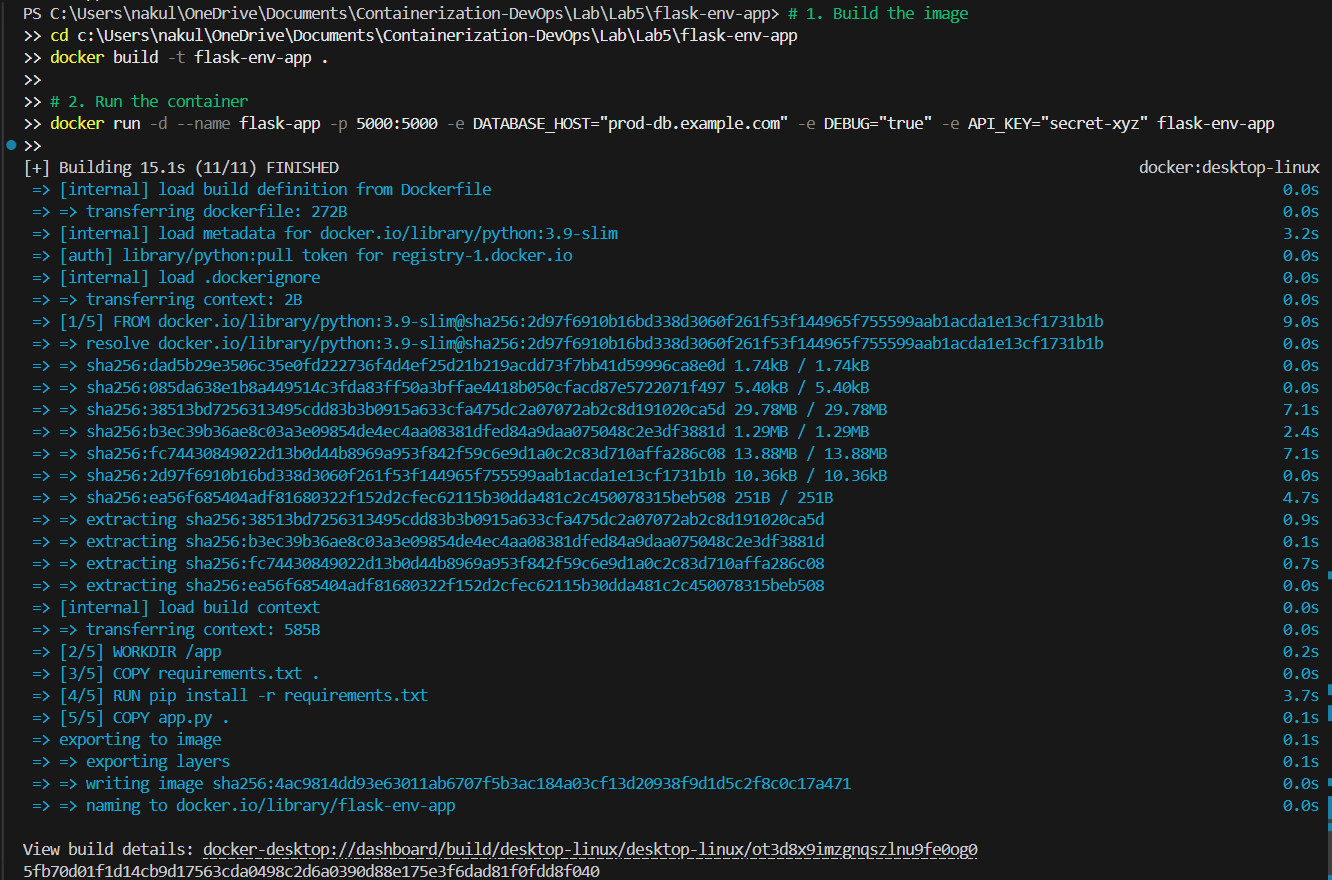
docker build -t flask-env-app .
docker run -d --name flask-app -p 5000:5000 \
  -e DATABASE_HOST="prod-db.example.com" \
  -e DEBUG="true" \
  -e API_KEY="secret-xyz" \
  flask-env-app
2. Testing Injected Environment Variables
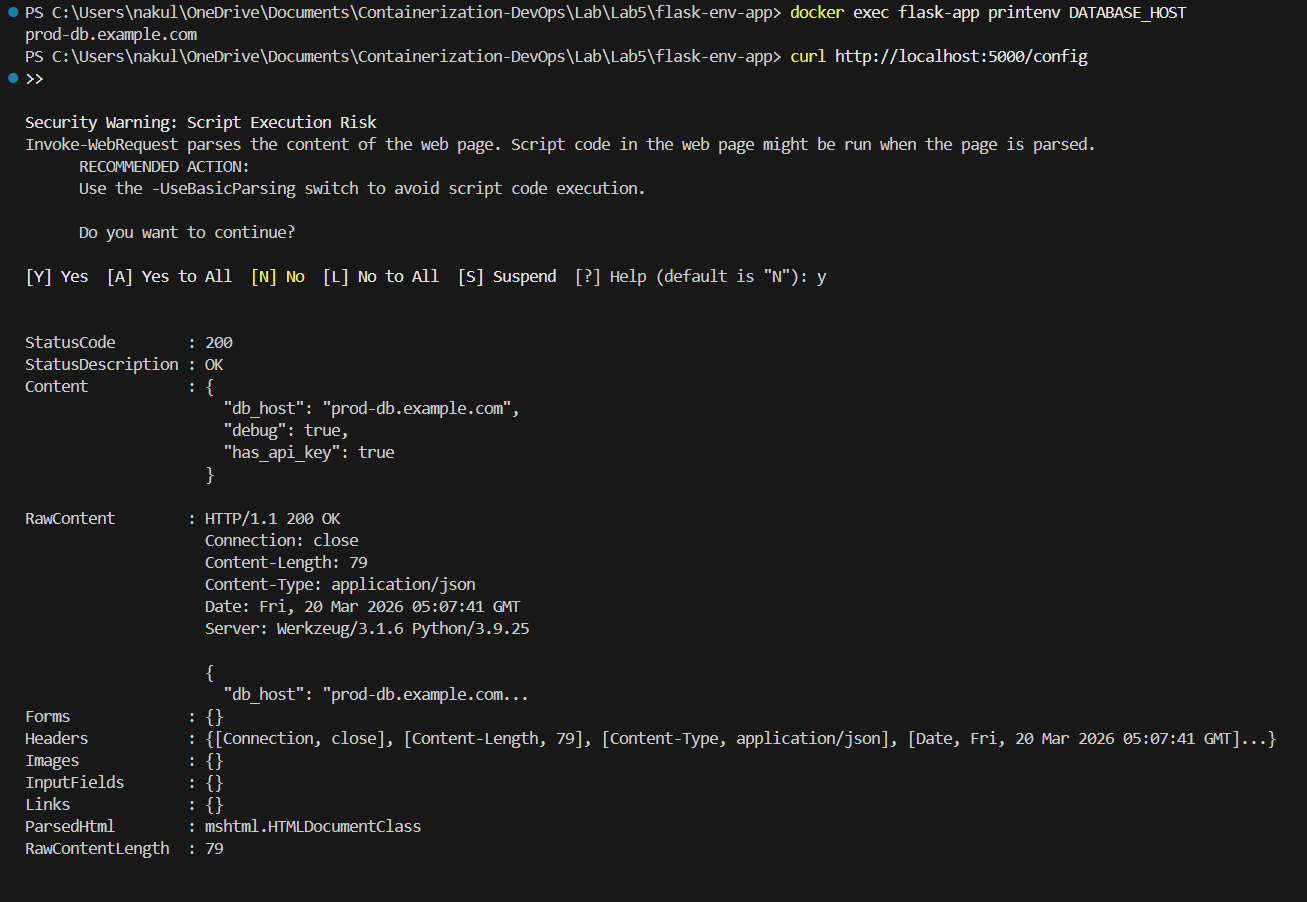
We can verify that the environment variables were successfully passed into the running container.
docker exec flask-app printenv DATABASE_HOST
curl http://localhost:5000/config
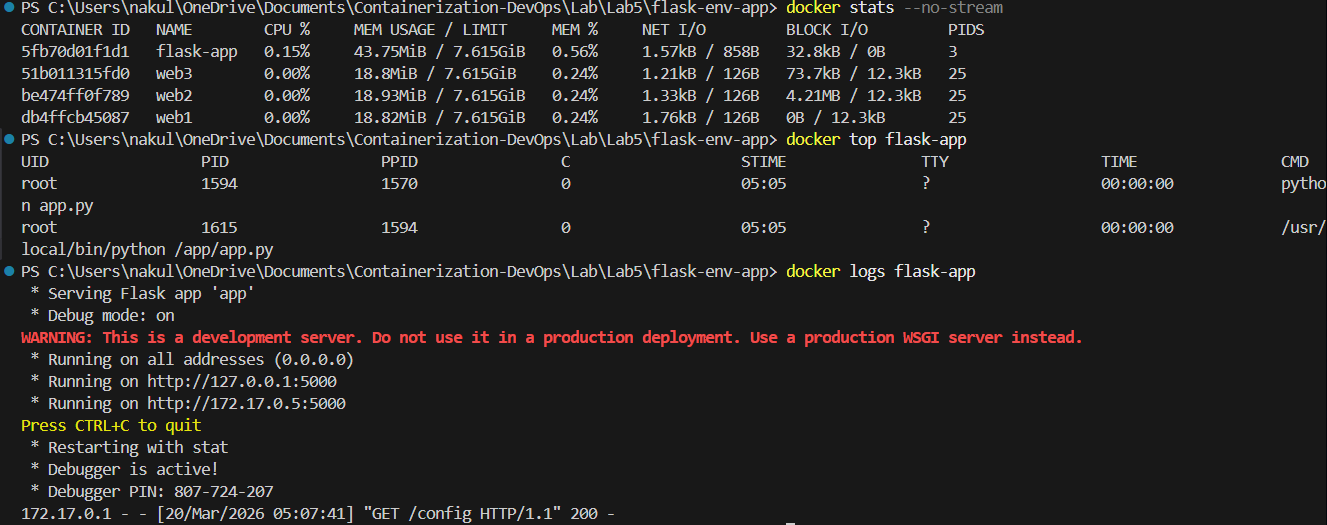
Part 3: Docker Monitoring
Monitoring allows us to keep track of resource usage, running processes, and application logs.
docker stats --no-stream
docker top flask-app
docker logs flask-app
Automated Monitoring Script
We can automate these checks using a bash script (monitor.sh):
monitor.sh
#!/bin/bash

echo "=== Docker Monitoring Dashboard ==="
echo "Time: $(date)"

echo "1. Running Containers:"
docker ps --format "table \t\t"

echo "2. Resource Usage:"
docker stats --no-stream --format "table \t\t"

echo "3. Recent Events:"
docker events --since '5m' --until '0s' | tail

echo "4. System Info:"
docker system df
Part 4: Docker Networks
Docker networks allow isolated containers to securely communicate with each other.
1. Creating a Network
We created a custom bridge network and attached two Nginx containers to it.
docker network create my-network
docker run -d --name net-web1 --network my-network nginx
docker run -d --name net-web2 --network my-network nginx

2. Internal Network Communication
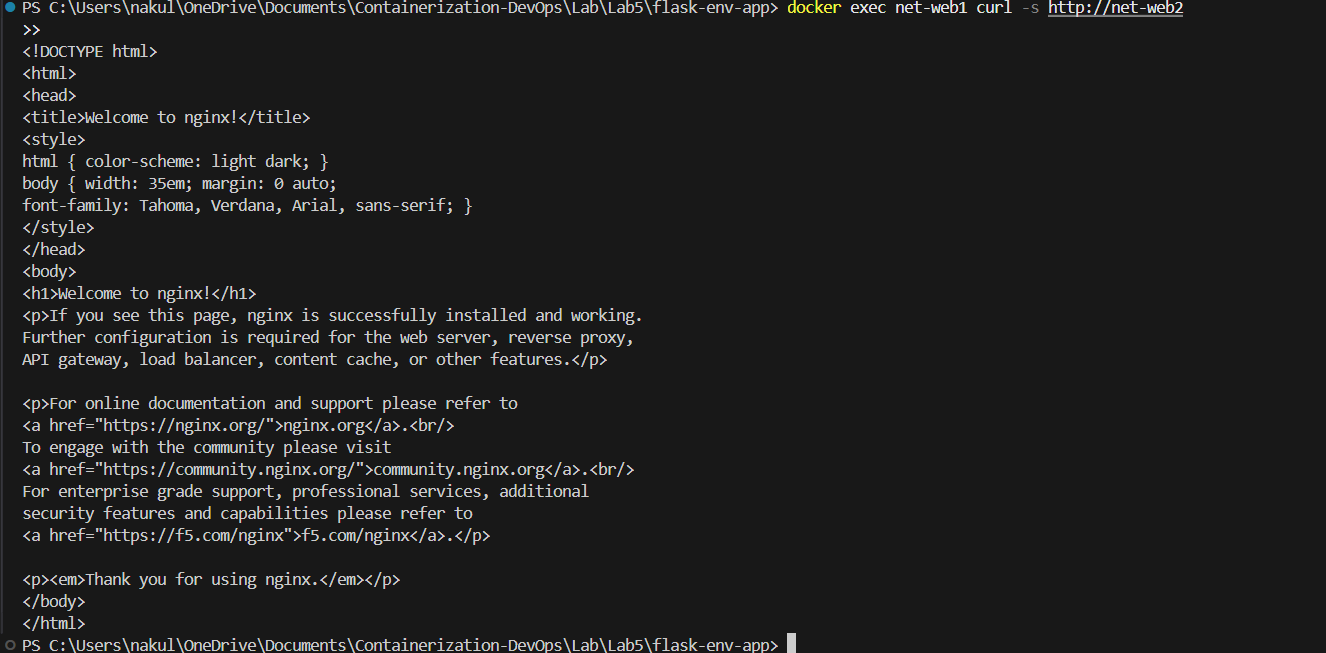
Because they share a custom network, containers can communicate with each other using their container names as DNS addresses.
docker exec net-web1 curl -s http://net-web2
Part 5: Real-World Example (Multi-Container Setup)
In a real-world scenario, we often have an application connected to a database and a cache layer, all residing on the same network.
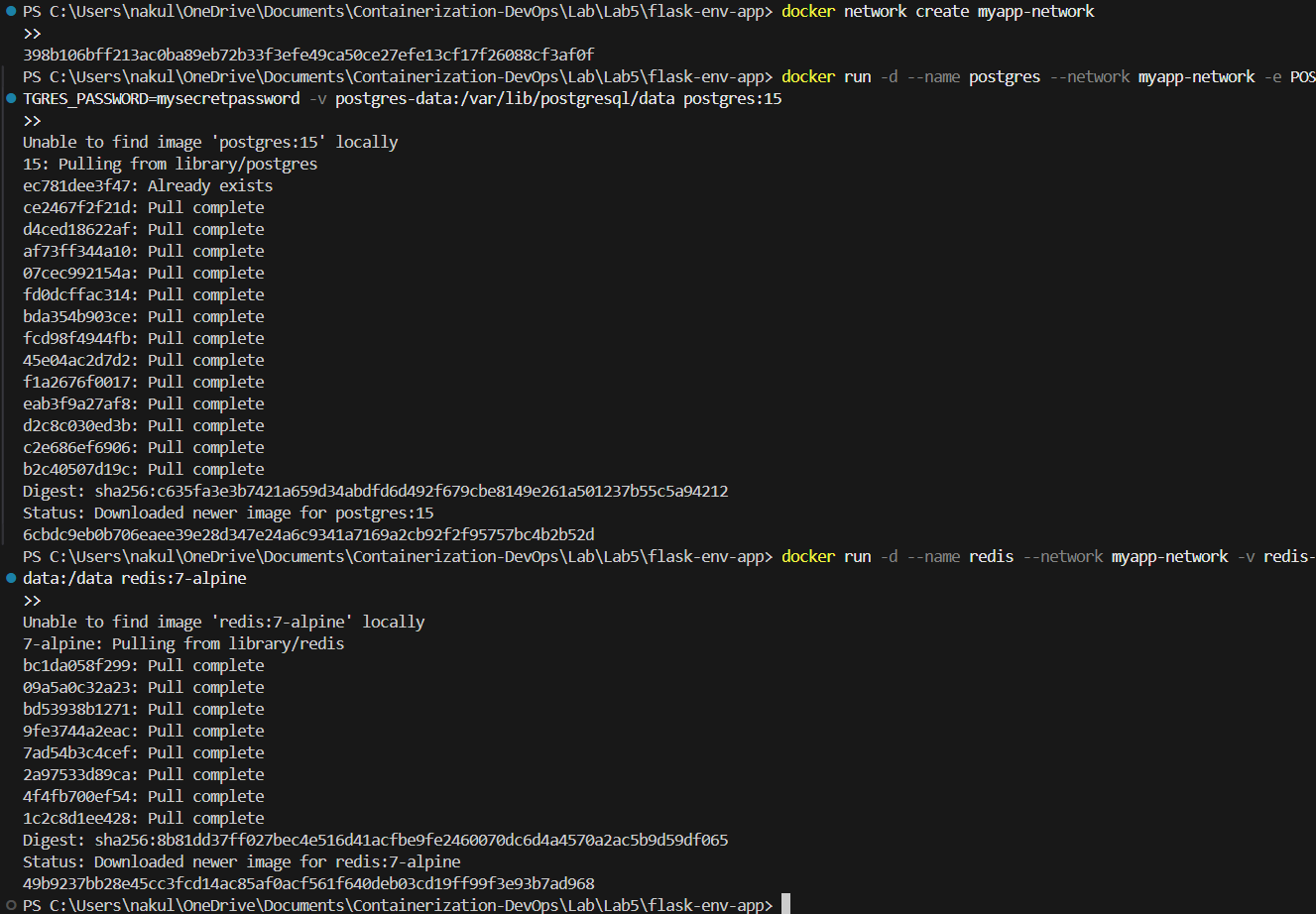
1. Running Postgres and Redis on a Shared Network
docker network create myapp-network
docker run -d --name postgres --network myapp-network \
  -e POSTGRES_PASSWORD=mysecretpassword \
  -v postgres-data:/var/lib/postgresql/data postgres:15

docker run -d --name redis --network myapp-network \
  -v redis-data:/data redis:7-alpine
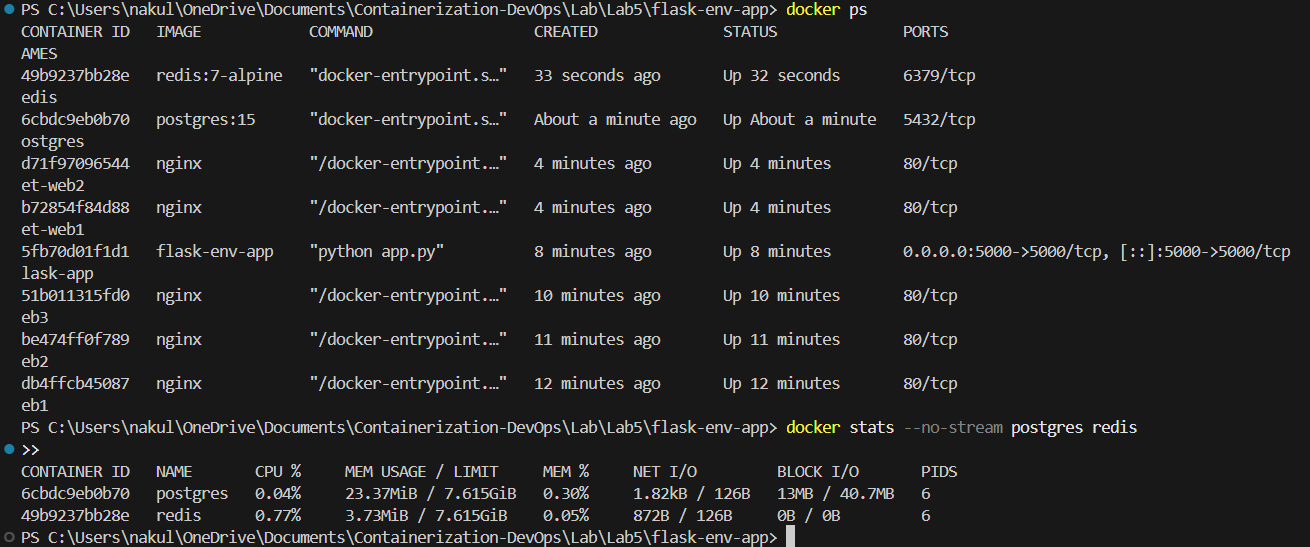
2. Verifying the Services
docker ps
docker stats --no-stream postgres redis
Cleanup
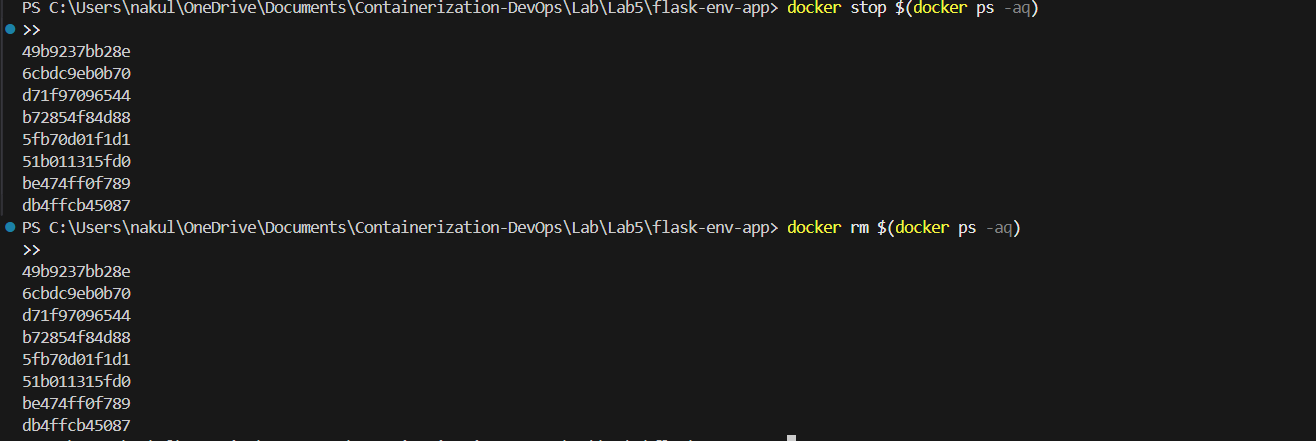
docker stop $(docker ps -aq)
docker rm $(docker ps -aq)
docker volume prune -f
docker network prune -f
Docker Commands Cheat Sheet
Volumes
| Command | Description |
|———|————-|
| docker volume create <name> | Create a named volume |
| docker run -v <volume>:/path | Mount named volume |
| docker run -v /host:/container | Mount local bind |
Environment Variables
| Command | Description |
|———|————-|
| docker run -e VAR=value | Inject single variable |
| docker run --env-file .env | Inject multiple from file |
Monitoring
| Command | Description |
|———|————-|
| docker stats | Live resource usage |
| docker top <container> | process list inside container |
| docker logs -f <container> | Follow container logs |
Networks
| Command | Description |
|———|————-|
| docker network create <name> | Create custom network |
| docker run --network <name> | Run container on network |
Key Takeaways
- Volumes persist data safely outside the container lifecycle.
- Env variables configure apps without modifying the actual code or image.
- Monitoring helps debugging performance, memory issues, and hidden errors.
- Networks enable communication securely via DNS isolation between containers.
- Use named volumes in production for database persistence.
- Use custom networks for multi-container applications instead of linking containers manually.
🔗 Navigation
| Previous | Home | Next |
|---|---|---|
| ← Lab 4 | Main README | Lab 6 → |
All Labs
- Lab 1 — VM vs Container Comparison
- Lab 2 — Docker Installation & GitHub Pages
- Lab 3 — Docker Images, NGINX & Flask Deployment
- Lab 4 — Docker Essentials
- Lab 5 — Volumes, Env Vars, Monitoring, Networks (You are here)
- Lab 6 — Docker Run vs Docker Compose