containerization-and-devops
Lab 7: CI/CD using Jenkins, GitHub & Docker Hub
1. Aim
To build a complete CI/CD pipeline using:
- GitHub — Source code repository
- Jenkins — Automation server
- Docker Hub — Container image storage
2. Objective
- Understand the CI/CD workflow end-to-end
- Automate the build and push process using Jenkins
- Write a Jenkins pipeline using
Jenkinsfile - Store credentials securely inside Jenkins
- Trigger automated builds using GitHub Webhooks
3. What is CI/CD?
CI – Continuous Integration
Code is automatically built and tested after every commit pushed to GitHub.
CD – Continuous Deployment
The tested application is automatically packaged and deployed without manual steps.
Flow Diagram
Developer → GitHub → Webhook → Jenkins → Docker Hub
4. What is Jenkins?
Jenkins is a GUI-based open-source automation server that enables:
- Building applications
- Testing code automatically
- Deploying to target environments
Key Features
| Feature | Description |
|---|---|
| Web Dashboard | Visual interface to manage jobs and pipelines |
| Plugin Support | 1800+ plugins for every major tool |
| Pipeline as Code | Define your full CI/CD flow in a Jenkinsfile |
| Credential Store | Securely handles secrets and tokens |
5. Project Structure
my-app/
 ├── app.py
 ├── requirements.txt
 ├── Dockerfile
 └── Jenkinsfile
6. Application Code (Flask)
app.py
from flask import Flask
app = Flask(__name__)

@app.route("/")
def home():
    return "Hello from CI/CD Pipeline!"

app.run(host="0.0.0.0", port=80)
requirements.txt
flask
7. Dockerfile
FROM python:3.10-slim
WORKDIR /app
COPY . .
RUN pip install -r requirements.txt
EXPOSE 80
CMD ["python", "app.py"]
8. Jenkinsfile (Pipeline)
The Jenkinsfile defines the full CI/CD pipeline as code:
pipeline {
    agent any

    environment {
        IMAGE_NAME = "your-dockerhub-username/myapp"
    }

    stages {
        stage('Clone Source') {
            steps {
                git 'https://github.com/your-username/my-app.git'
            }
        }

        stage('Build Docker Image') {
            steps {
                sh 'docker build -t $IMAGE_NAME:latest .'
            }
        }

        stage('Login to Docker Hub') {
            steps {
                withCredentials([string(credentialsId: 'dockerhub-token', variable: 'DOCKER_TOKEN')]) {
                    sh 'echo $DOCKER_TOKEN | docker login -u your-dockerhub-username --password-stdin'
                }
            }
        }

        stage('Push to Docker Hub') {
            steps {
                sh 'docker push $IMAGE_NAME:latest'
            }
        }
    }
}
Pipeline Stages Explained
| Stage | What It Does |
|---|---|
Clone Source |
Pulls the latest code from GitHub |
Build Docker Image |
Runs docker build to create the image |
Login to Docker Hub |
Authenticates using stored token credential |
Push to Docker Hub |
Uploads the built image to Docker Hub |
9. Jenkins Setup using Docker
We run Jenkins itself as a Docker container for easy setup.
docker-compose.yml
version: "3.8"
services:
  jenkins:
    image: jenkins/jenkins:lts
    container_name: jenkins
    ports:
      - "8080:8080"
      - "50000:50000"
    volumes:
      - jenkins_home:/var/jenkins_home
      - /var/run/docker.sock:/var/run/docker.sock
    user: root

volumes:
  jenkins_home:
Why mount
/var/run/docker.sock? This allows Jenkins (running inside a container) to communicate with the host Docker daemon — so it can build and push images directly from within the pipeline.
Starting Jenkins
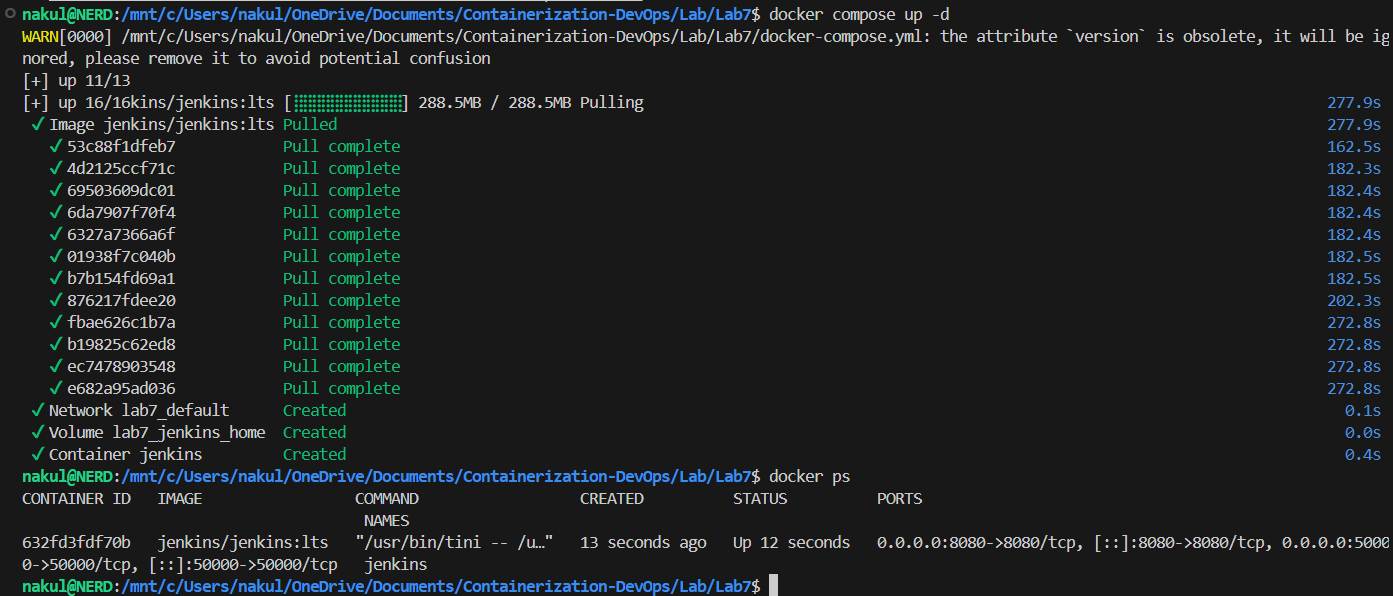
docker compose up -d
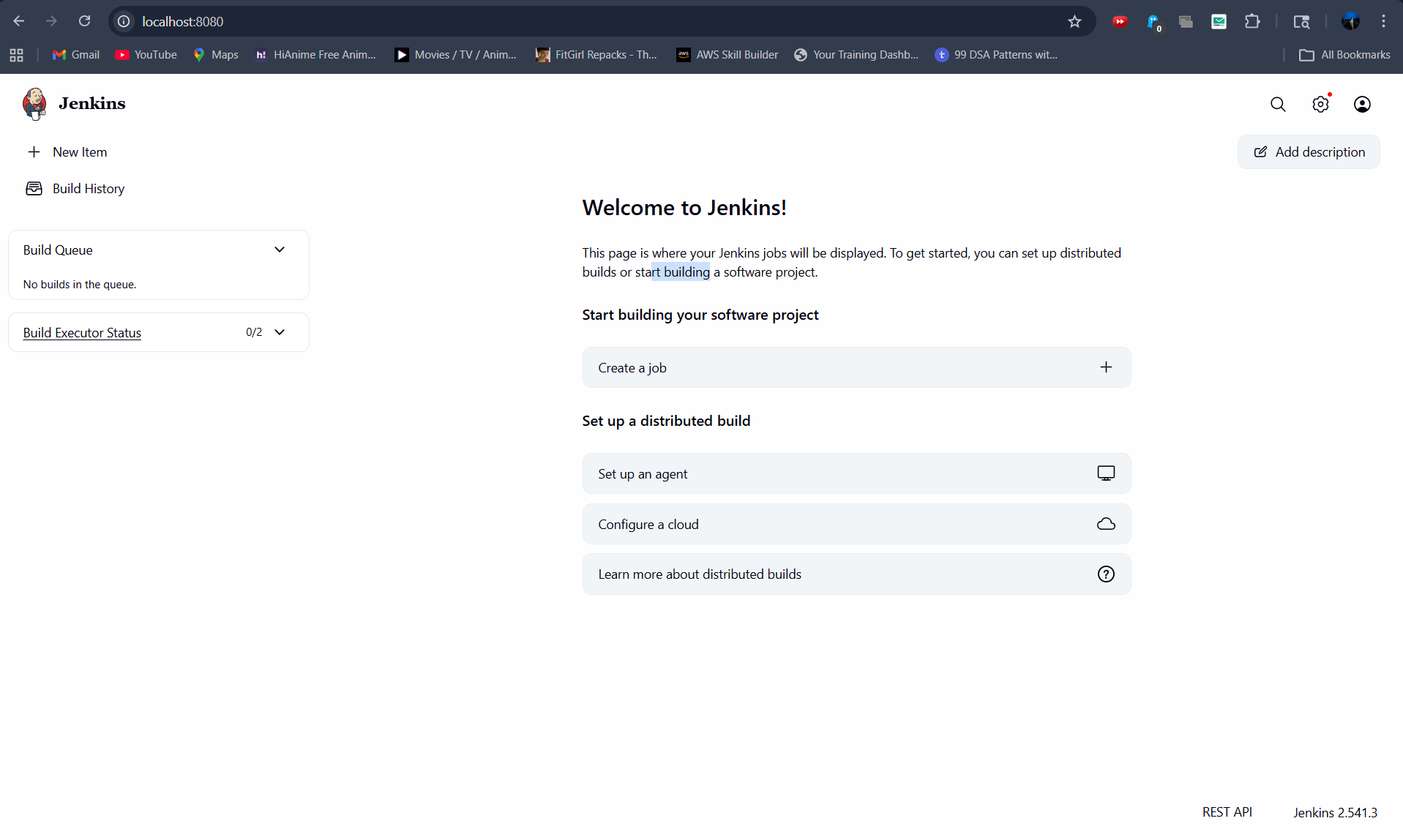
Then open: http://localhost:8080
10. Jenkins Configuration
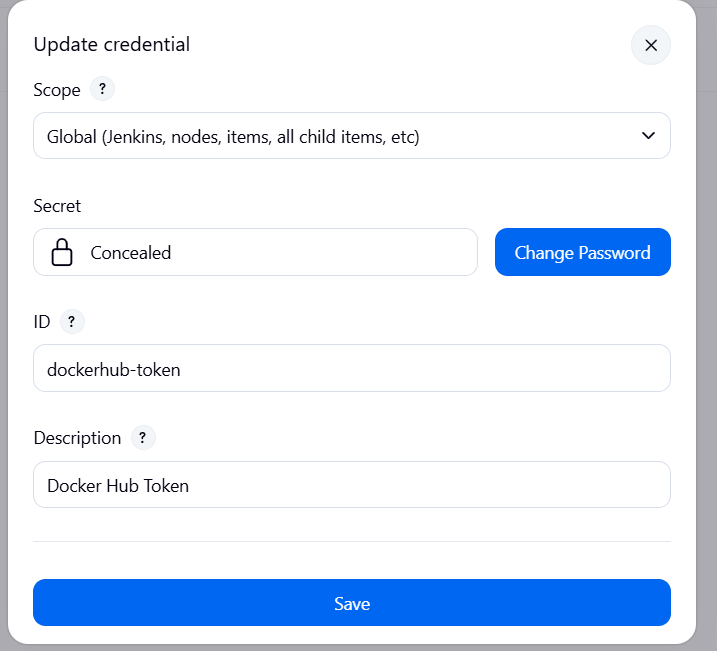
Step 1 – Add Docker Hub Credentials
Navigate to:
Manage Jenkins → Credentials → System → Global credentials → Add Credentials
- Kind: Secret text
- ID:
dockerhub-token - Secret: Your Docker Hub access token
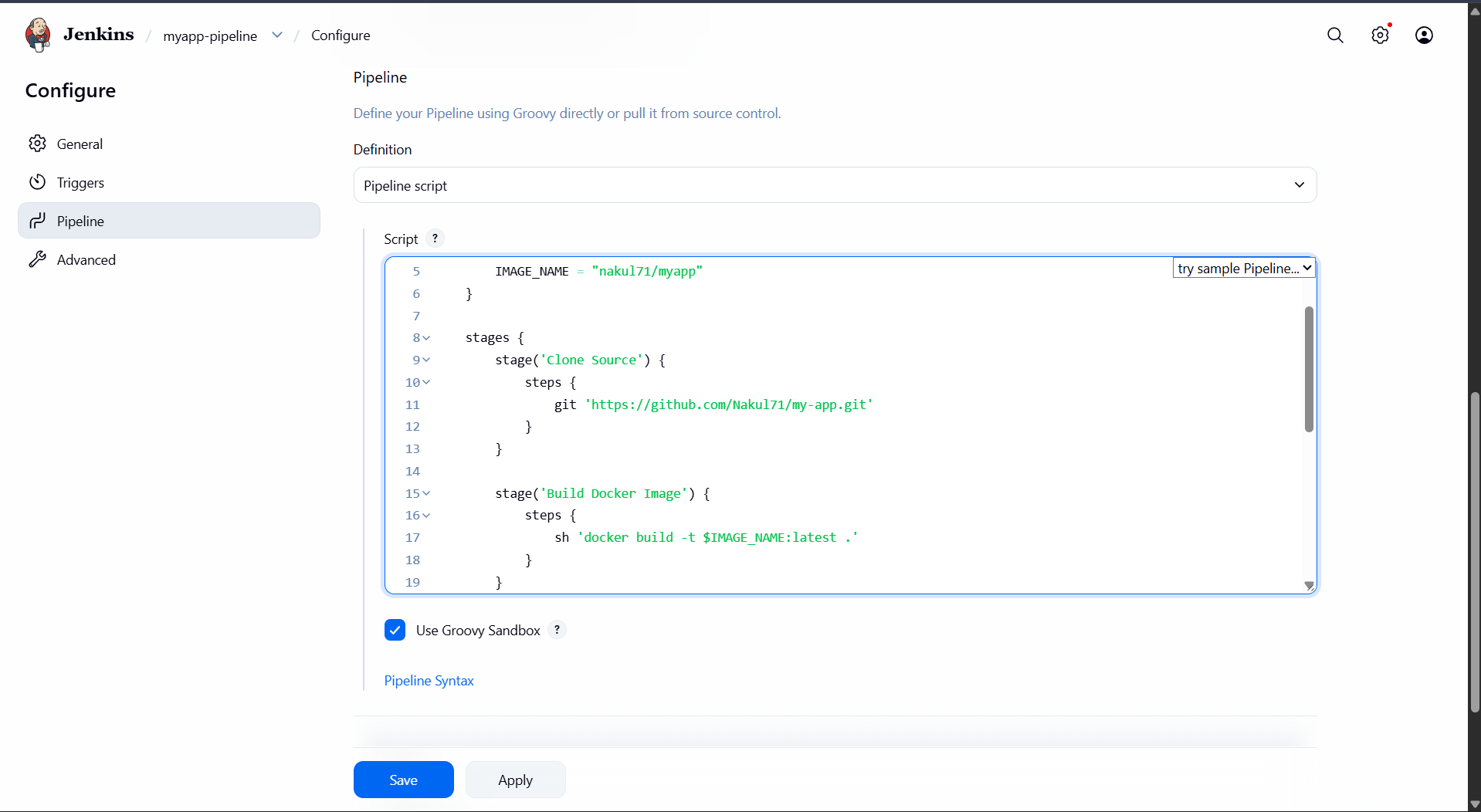
Step 2 – Create a Pipeline Job
- Click New Item
- Select Pipeline
- Under Pipeline Definition, select
Pipeline script from SCM - Set SCM to Git and paste your GitHub repo URL
- Jenkins will automatically pick up the
Jenkinsfilefrom the repo root
11. Webhook Integration
In GitHub
- Go to your repo → Settings → Webhooks → Add webhook
- Set the Payload URL to:
http://<your-jenkins-ip>:8080/github-webhook/ - Content type:
application/json - Trigger on: Push events
Now every git push will automatically trigger the Jenkins pipeline!
12. Execution Flow
Step 1: Developer pushes code to GitHub
         ↓
Step 2: GitHub sends a Webhook notification to Jenkins
         ↓
Step 3: Jenkins Pipeline runs:
        → Clone code
        → Build Docker image
        → Login to Docker Hub
        → Push image
         ↓
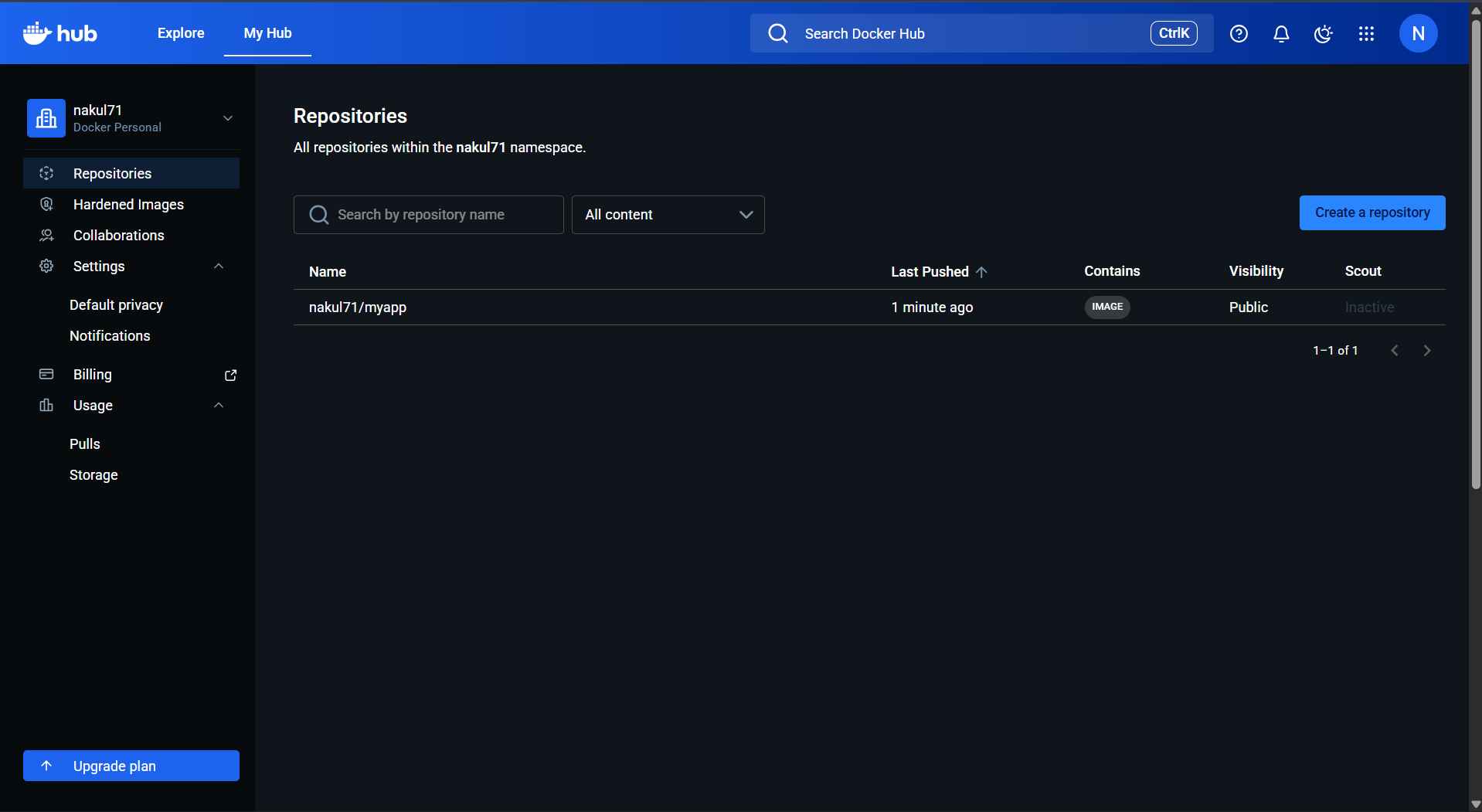
Step 4: Image is now live on Docker Hub
13. Key Concept: withCredentials
Problem
Hardcoding passwords in Jenkinsfile exposes secrets in version control.
Solution
withCredentials([string(credentialsId: 'dockerhub-token', variable: 'DOCKER_TOKEN')]) {
    sh 'echo $DOCKER_TOKEN | docker login -u your-dockerhub-username --password-stdin'
}
Jenkins:
- Fetches the secret from the encrypted credentials store
- Injects it as an environment variable temporarily
- Automatically masks it from all logs
- Removes it from memory after the block completes
14. Key Commands in Pipeline
| Command | Purpose |
|---|---|
git |
Clone the source code repository |
sh |
Execute a shell command on the agent |
docker build |
Build a Docker image from the Dockerfile |
docker login |
Authenticate with Docker Hub |
docker push |
Upload the image to Docker Hub |
15. Observations & Screenshots
The following screenshots document the complete setup and execution of this CI/CD pipeline.
Jenkins Running via Docker Compose
Jenkins Initial Setup & Dashboard
Adding Docker Hub Credentials in Jenkins
Pipeline Job Configuration
Pipeline Build Execution
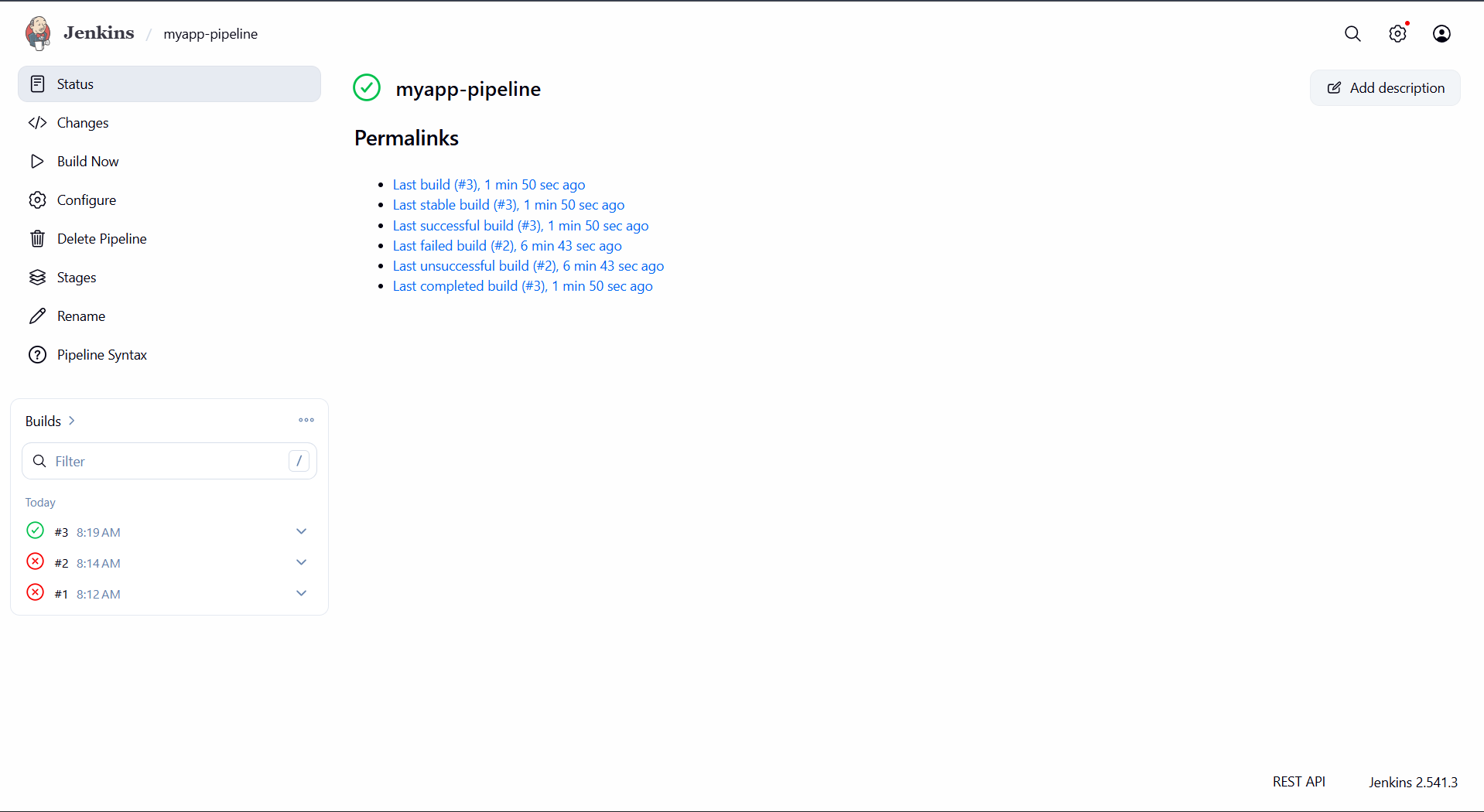
Image Successfully Pushed to Docker Hub
16. Result
Successfully created a complete automated CI/CD pipeline:
| Component | Role |
|---|---|
| GitHub | Stores source code, triggers webhook on push |
| Jenkins | Automates build, login, and push stages |
| Docker | Provides consistent build environment |
| Docker Hub | Stores and distributes the built image |
Every git push now automatically results in a new Docker image on Docker Hub — with zero manual steps.
Key Takeaways
- Jenkins automates the entire pipeline — no manual intervention needed after setup.
- GitHub stores code and acts as the trigger source via webhooks.
- Docker ensures consistency — the same image runs anywhere.
withCredentialssafely handles secrets without exposing them in logs or code.- Pipeline as Code (
Jenkinsfile) keeps your CI/CD logic version-controlled alongside your app.
🔗 Navigation
| Previous | Home | Next |
|---|---|---|
| ← Lab 6 | Main README | — |
All Labs
- Lab 1 — VM vs Container Comparison
- Lab 2 — Docker Installation & GitHub Pages
- Lab 3 — Docker Images, NGINX & Flask Deployment
- Lab 4 — Docker Essentials
- Lab 5 — Volumes, Env Vars, Monitoring, Networks
- Lab 6 — Docker Run vs Docker Compose
- Lab 7 — CI/CD using Jenkins, GitHub & Docker Hub (You are here)